
Prerequisites
The user installing the Autonomo application must be assigned as an admin, manager or install role.
Before starting, please review the install check list in the first section.
There are three ways you can install Autonomo:
- Autonomo 4 - Installation via UI
- Autonomo 4 - Installation via command line (quiet install) - This document.
- Autonomo 4 - Intune setup info
Please see the below to find more details when installing Autonomo:
- Autonomo - Asset Category and Asset Sub-Category options
- Autonomo - Asset Groups
- Autonomo - Auto-provisioning
- Autonomo 4 - Install Troubleshooting Guide
Steps for Installing Autonomo onto designated devices using Intune
- Create an account in the Troverlo Portal if one does not exist for your company.
- Download Autonomo
- This same link can be accessed by selecting the last option on the Navigation panel of the Portal.
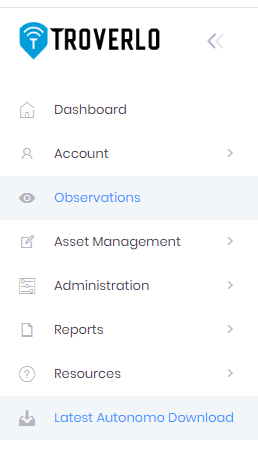
- This same link can be accessed by selecting the last option on the Navigation panel of the Portal.
- Autonomo, by default is put into the downloads folder.
Setup type as
Line-of-business app (it will show it as Windows MSI line-of-business app after it is created)
In Properties, set:
App install context
Device
Ignore app version
Yes
Command-line arguments for install
/qn /norestart /l c:\windows\temp\autonomo-install<x.y.z>.log USERNAME=“<usernameValue>" PASSWORD=“<passwordValue>" CATEGORY="<categoryValue>" SUBCATEGORY="<subCategoryValue>" ASSETGROUP="<group1,group2,group3>" CURRENTUSER='yes" AUTONOMODE="Active"
Notes:
- Please note: the user that is installing Autonomo must have the "installer" role assigned to them. - see User (Team Member) Management
- Replace the "<x.y.z>" with the appropriate Autonomo version, such as 4.6.10
- Replace the additional text surrounded by "<>" with your data
- Click to learn more about CATEGORY, SUBCATEGORY and ASSETGROUP.
-
ASSETGROUP, CURRENTUSER, and AUTONOMODE are optional parms
- ASSETGROUP
- This allows you group assets together to aid in searches.
- There can be multiple items, they must be separated with a comma, no spaces.
- AUTONOMODE
- These are the Autonomo Modes you can choose from
-
- “Active”
- Autonomo operates as an Observation Endpoint and there is a desire to track this device as an Asset.
- Autonomo will post Wi-Fi scan data for all detected APs and other Troverlo Assets (if any) within an observation window and will include its own ID in the post.
- Can publish or receive Action Commands.
- This is the default.
- “OESR” – Observation Endpoint Self-reporting
- Autonomo operates as an Observation Endpoint and there is a desire to track this device as an Asset.
- Autonomo in this mode will ONLY post Wi-Fi scan data about itself, Assets and APs when other Troverlo Assets are detected within an observation window.
- Never advertises its location – when offline it doesn’t beacon.
- Can publish, but cannot receive Action Commands.
- “OE” – Observation Endpoint
- Autonomo operates as an Observation Endpoint and there is NOT a desire to track this device as an Asset.
- Autonomo in this mode will ONLY post Wi-Fi scan data that contains Troverlo Assets and APs when other Troverlo Assets are detected within an observation window.
- Never advertises its location – when offline it doesn’t beacon.
- Can publish, but cannot receive Action Commands.
- “Active”
- CURRENTUSER
- Autonomo monitors the current account user and transmit this information security via SSID to the Troverlo platform with each observation for that Asset.
- WARNING: You canNOT use CURRENTUSER="yes" with AUTONOMODE="OE". If you select this combination, you will see this error.
- "autonomo-install<x.y.z>.log"
- This file is usually about 30k in size and can be found in the c:/windows/temp folder that was designated in the command above.
- If the file is 2 bytes, the .msi file is not in the current folder. Please move to folder where the .msi file is located to run this command line installer.
- What to look for?
- At the bottom of the file, in last 2 lines it will indicate if Autonomo installed successfully or it failed.
- Example text for of a successful installation:
- MSI (s) (88:98) [16:03:56:809]: Product: Troverlo Autonomo (64 bit) -- Installation completed successfully.
MSI (s) (88:98) [16:03:56:809]: Windows Installer installed the product. Product Name: Troverlo Autonomo (64 bit). Product Version: 4.6.9. Product Language: 1033. Manufacturer: Troverlo. Installation success or error status: 0.
- MSI (s) (88:98) [16:03:56:809]: Product: Troverlo Autonomo (64 bit) -- Installation completed successfully.
- If you do see a similar message, please see the Autonomo 4 - Install Troubleshooting Guide.
Steps for Uninstalling Autonomo from designated devices using Intune
Setup type as
Line-of-business app (it will show it as Windows MSI line-of-business app after it is created)
In Properties, set:
App install context
Device
Ignore app version
Yes
Command-line arguments for install
/qn /norestart /l c:\windows\temp\autonomo-uninstall<x.y.z>.log
The uninstaller will remove all files, folders and logs from the device.
Autonomo-install<x.y.z>.log and Autonomo-uinstall<x.y.z>.log
These files can be found in the c:/windows/temp folder that was designated in the command above.
This is a log file that provides information output from the MSI file when quiet install is used (command line).
Use it to validate
- Autonomo version, date and time installed.
- All the parameters entered on the command line.
Use it to troubleshoot:
- It will show all the steps covered.
- It will show if successful or any errors if not successful.
Troubleshooting if you have problems installing Autonomo
Please reference the Autonomo 4 - Troubleshooting Guide if you encounter issues not addressed above or you may contact Troverlo Support via our Support Center.