Learn more about Autonomo here.
Prerequisites
The user installing the Autonomo application must be assigned an admin, manager or install role.
Before starting, please review the install check list in the first section.
There are three ways you can install Autonomo:
- Autonomo - Installation via UI - This document
- Autonomo - Installation via command window (quiet)
- Autonomo - Installation via Intune MDM
Please see the below to find more details when installing Autonomo:
- Autonomo - Asset Category and Asset Sub-Category options
- Autonomo - Asset Groups
- Autonomo - Auto-provisioning
- Autonomo - Install Troubleshooting Guide
Modes for Installing Autonomo on an Asset
- Installing Autonomo on a new device.
- Upgrading Autonomo.
- Repairing Autonomo.
- Uninstalling Autonomo.
Steps for Installing Autonomo on an Asset
- Create an account in the Troverlo Portal if one does not exist for your company.
- Download Autonomo
- This same link can be accessed by selecting the last option on the Navigation panel of the Portal.
-
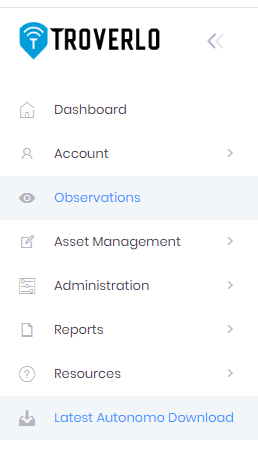
- Or you can down directly by clicking on this link AutonomoSetup.exe
- Autonomo, by default is put into the downloads folder.
Interactive UI Install of Autonomo
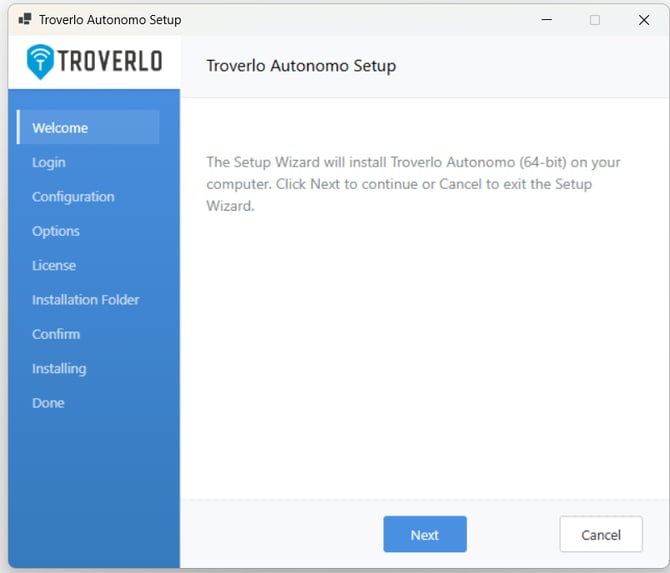
- Launch AutonomoSetup.exe
- Select next
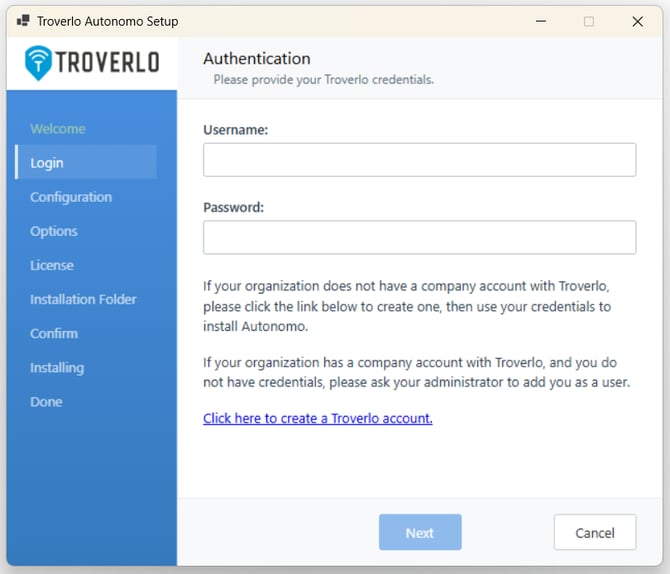
- Enter your Troverlo user credentials here.
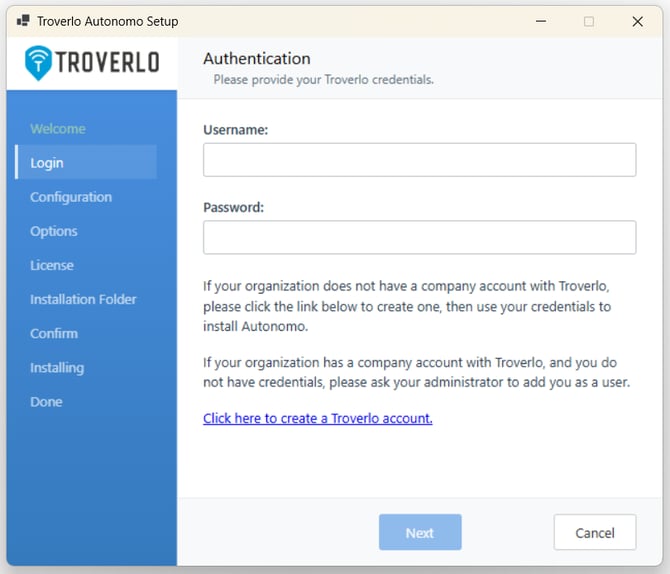
- Please note: the user that is installing Autonomo must have the "installer" role assigned to them. - see User (Team Member) Management
- Select "next"
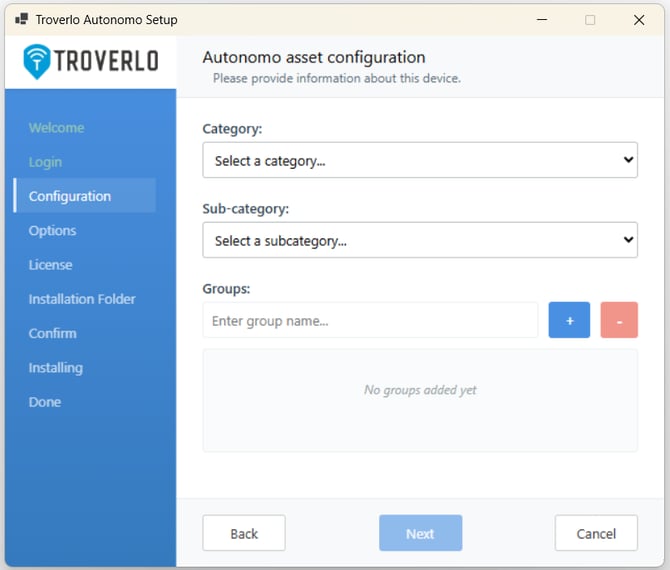
- Required:
- Select a Category.
- Select a Sub-category.
- See Autonomo - Asset Category and Asset Sub-Category options for more info.
- Optional
- Groups -
- Enter the name of a Group in the textbox and click the “+” button.
- If you enter a group that doesn’t currently exist, it will be created
- To remove a group, click on the item in the list and then click on the “-” button.
- See Autonomo - Asset Groups for more info on why to use Asset Groups.
- Groups -
- Select “Next”
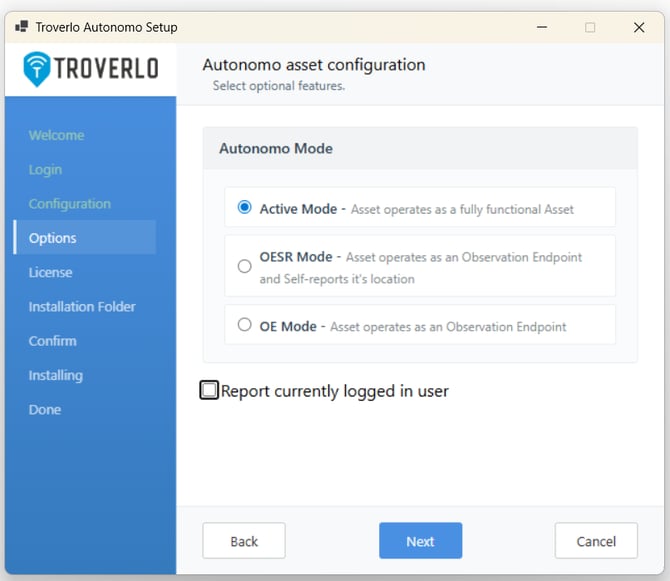
- Required - Select an Autonomo Mode.
- “Active”
- Autonomo operates as an Observation Endpoint and there is a desire to track this device as an Asset.
- Autonomo will post Wi-Fi scan data for all detected APs and other Troverlo Assets (if any) within an observation window and will include its own ID in the post.
- Can publish or receive Action Commands.
- This is the default.
- “OESR” – Observation Endpoint Self-reporting
- Autonomo operates as an Observation Endpoint and there is a desire to track this device as an Asset.
- Autonomo in this mode will ONLY post Wi-Fi scan data about itself, Assets and APs when other Troverlo Assets are detected within an observation window.
- Never advertises its location – when offline it doesn’t beacon.
- Can publish, but cannot receive Action Commands.
- “OE” – Observation Endpoint
- Autonomo operates as an Observation Endpoint and there is NOT a desire to track this device as an Asset.
- Autonomo in this mode will ONLY post Wi-Fi scan data that contains Troverlo Assets and APs when other Troverlo Assets are detected within an observation window.
- Never advertises its location – when offline it doesn’t beacon.
- Can publish, but cannot receive Action Commands.
- “Active”
- Optional - Select "Report currently logged-in user" to receive the current user with each observation for that Asset.
- WARNING: You canNOT use "Report currently logged-in user" with OE Autonomo mode. If you select this combination, you will see this error.
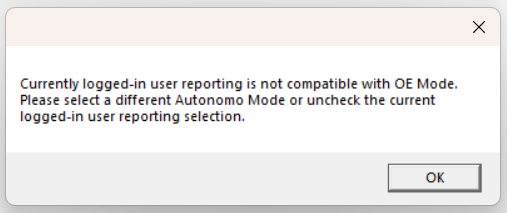
- Once you have addressed this, you can move forward.
-
Select “next”
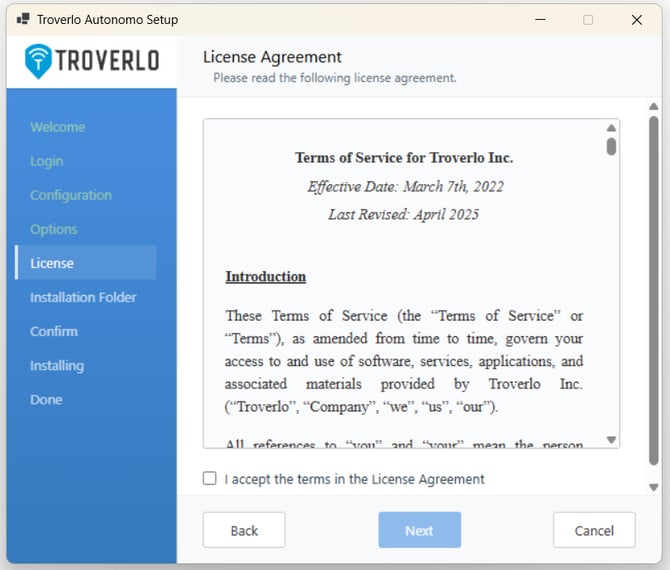
- Please scroll and read the Troverlo Terms of Service Agreement, and then select “I accept..” on the EULA.
- The "Next" button will be illuminated.
- Select "Next."
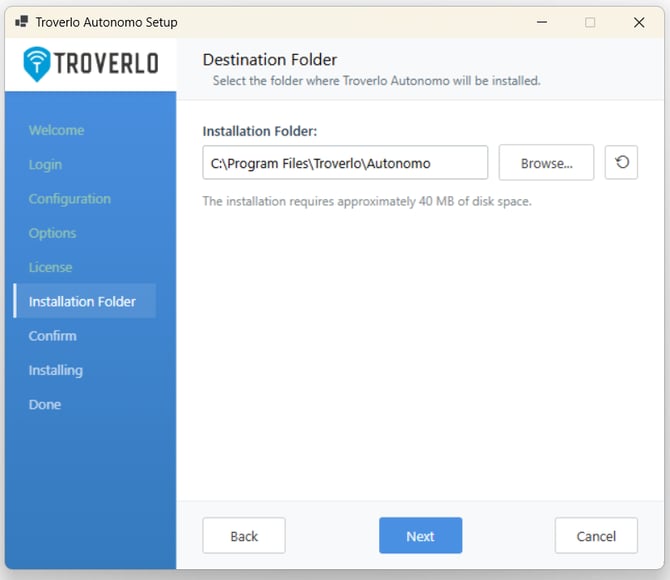
-
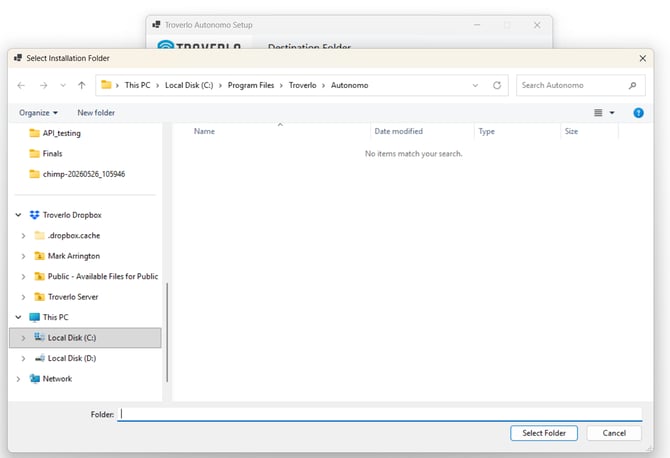
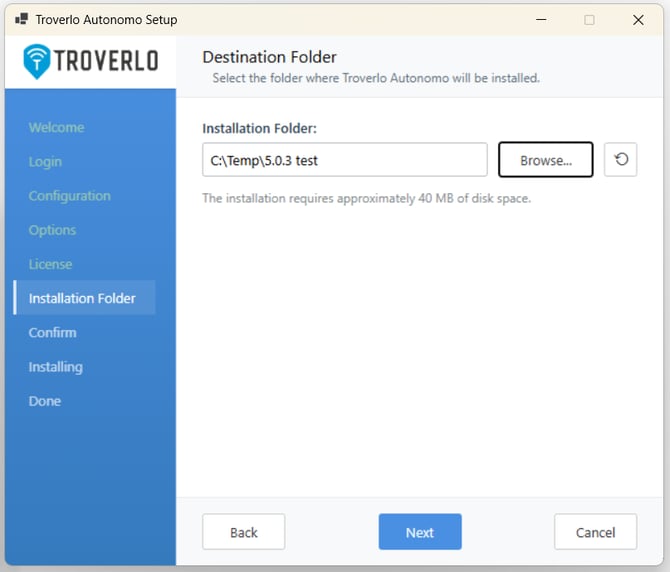
Use the default or click "Browser" to navigate to a folder or create a folder for the files to be installed into.
- Select "Next"
-
-
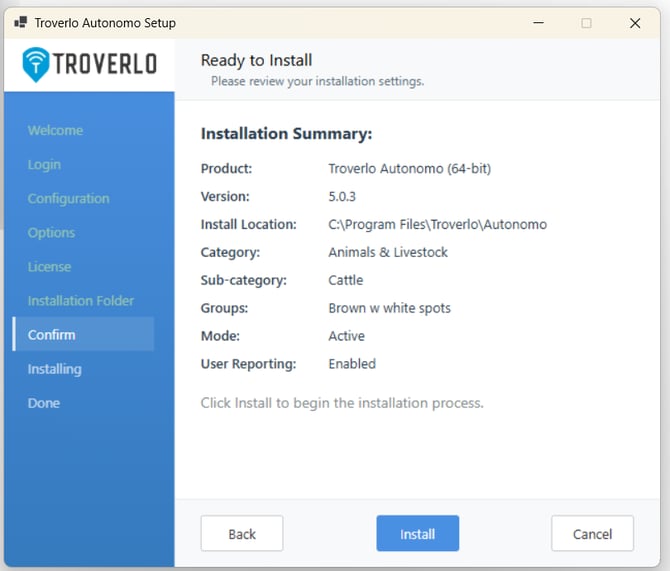
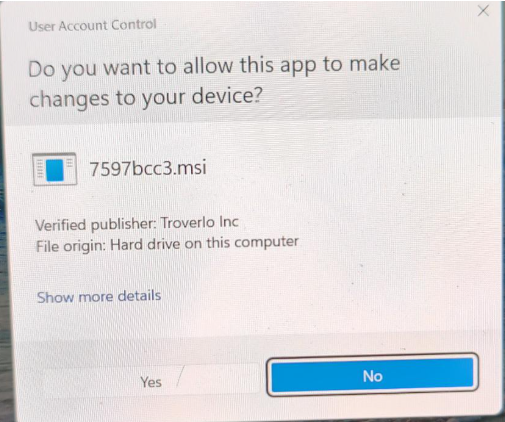
Review all the selection made so far and correct using the "Back" button or select "Install" and it will start the installation.
- If you see this, please select “yes” on this screen.
- This is showing progress of the installation.
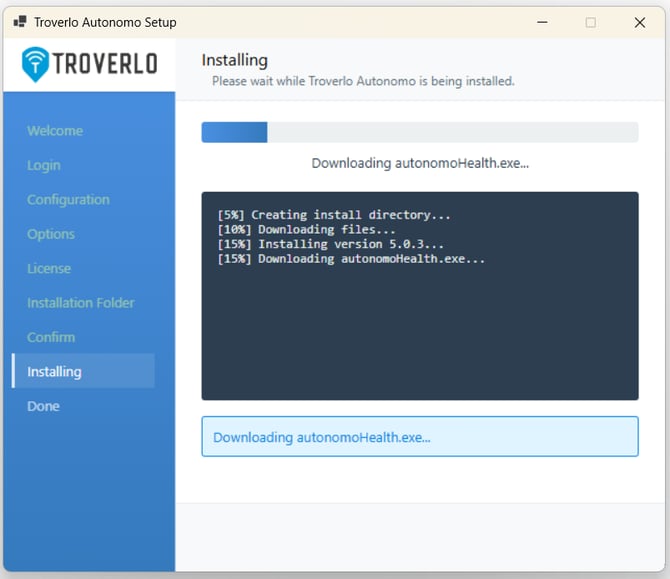
-
If troubleshooting is needed, the default log filename is AutonomoInstaller.log and it can be found in the \users\<username>\appData\localTemp folder.
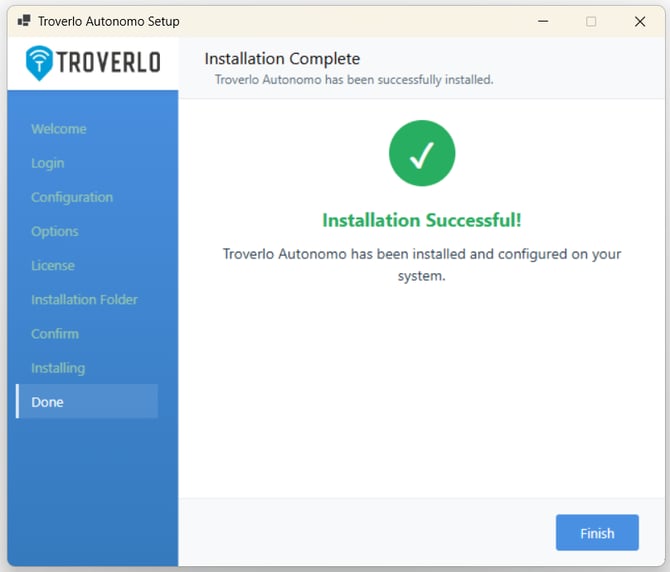
- Select “Finish”
- Now, all the Autonomo files will be installed, and it will Auto-provision itself on the Troverlo platform.
- About 2-3 minutes after the installation is complete, you should be operationally ready.
Steps for Upgrading to a new release
- Download Autonomo
- This same link can be accessed by selecting the last option on the Navigation panel of the Portal.
- This same link can be accessed by selecting the last option on the Navigation panel of the Portal.
- Launch AutonomoSetup.exe
- Select "Next"
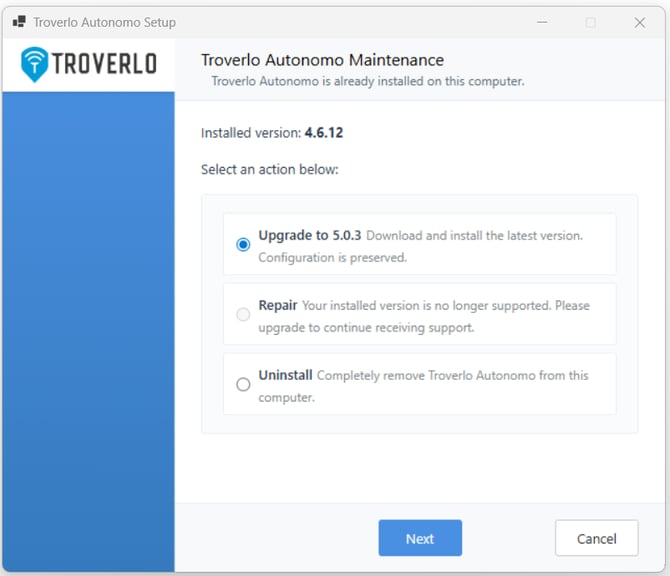
- Select "Upgrade" and then "Next"
- if the current Autonomo version is less than 4.6, you will be asked to authenticate
- if the current Autonomo version is less than 4.6, you will be asked to authenticate
- Every version of Autonomo will see this page next 2 pages
- Previous settings will be presented, you can accept those or you can change them at this time.
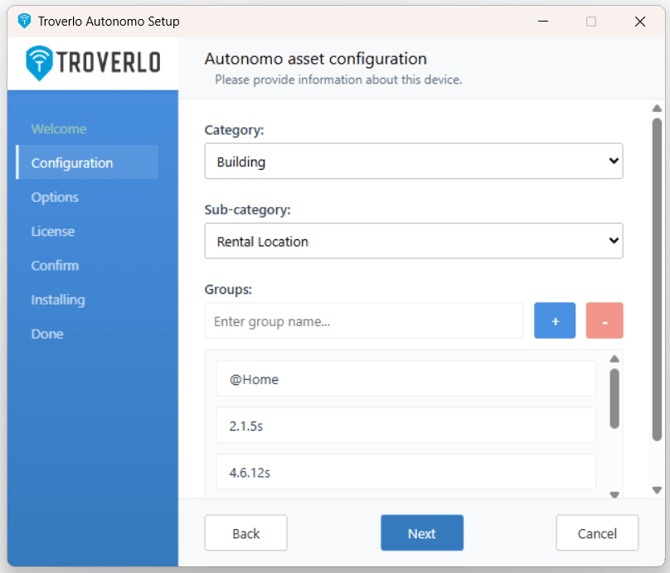
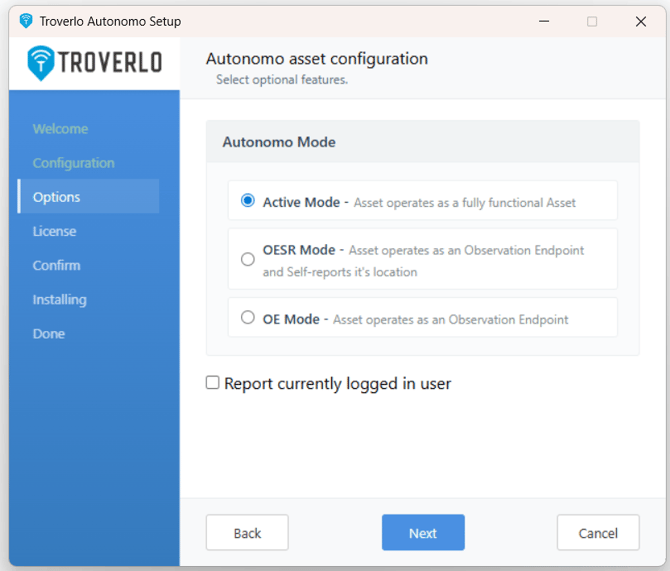
-
Select “next”
- Please scroll and read the Troverlo Terms of Service Agreement, and then select “I accept..” on the EULA.
- The "Next" button will be illuminated.
- Select "Next"
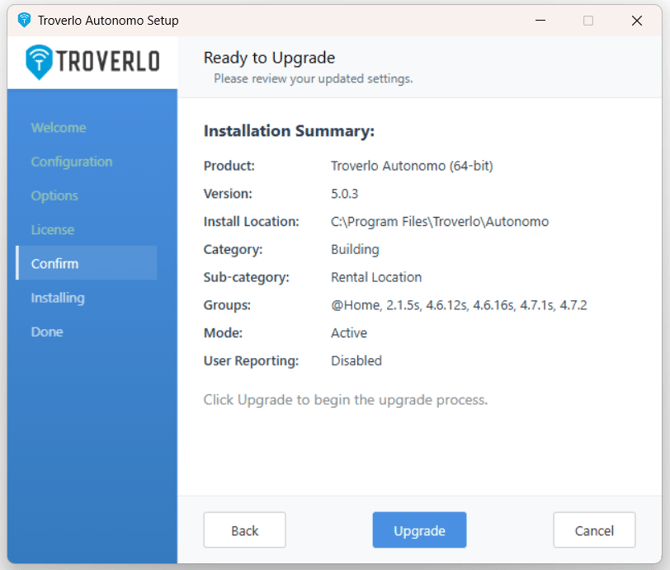
- Select "Install" and it will start the installation.
- Select "Update"
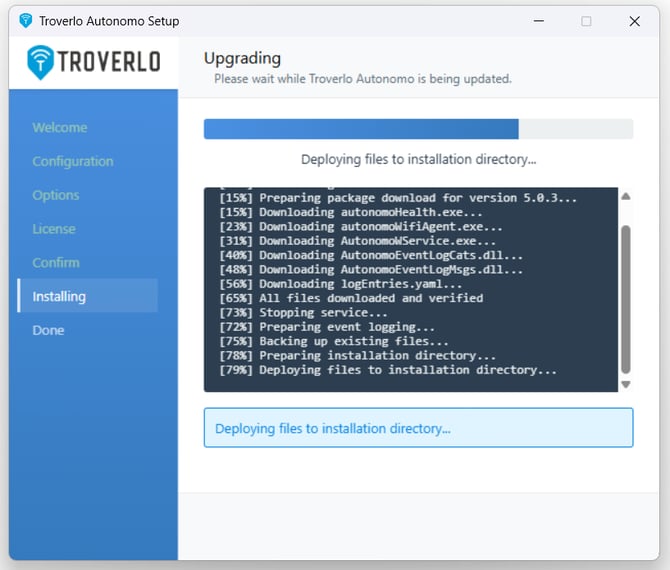
- This is showing progress of the installation.
- If troubleshooting is needed, the default log filename is AutonomoInstaller.log and it can be found in the \users\<username>\appData\localTemp folder.
- Select “Finish”
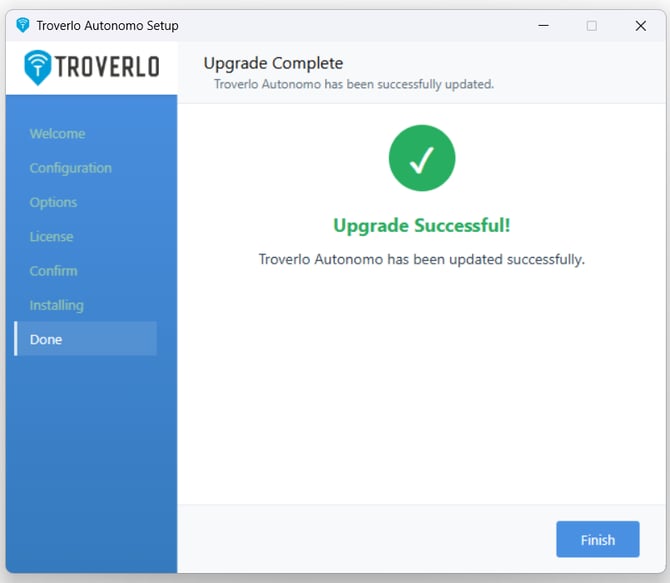
- All the old files will be removed, all new Autonomo files will be installed.
- Rollback Safety
- Fresh install failure: All created files, services, and registry entries are removed.
- Upgrade/repair failure: Original files are restored from a backup and the service is restarted.
- About 3 minutes after the installation is complete, you should be operationally ready.
Steps for Repairing Autonomo
- Launch AutonomoSetup.exe
-
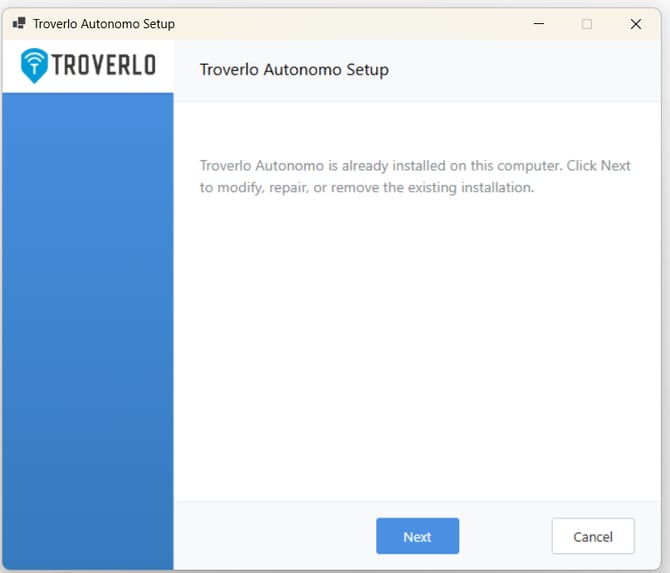
- Select "Next"
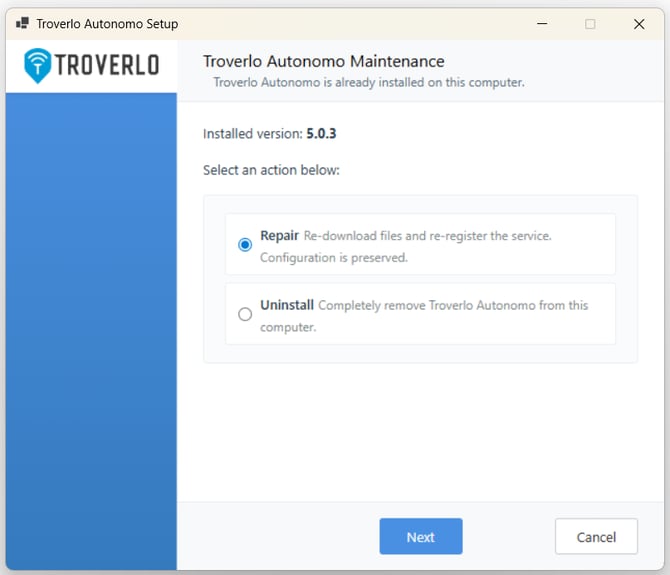
- Select "Repair" and then "Next"
- Previous settings will be presented, you can accept those or you can change them at this time.
- Select "Next"
-
Select “next”
- Please scroll and read the Troverlo Terms of Service Agreement, and then select “I accept..” on the EULA.
- The "Next" button will be illuminated.
- Select "Next"
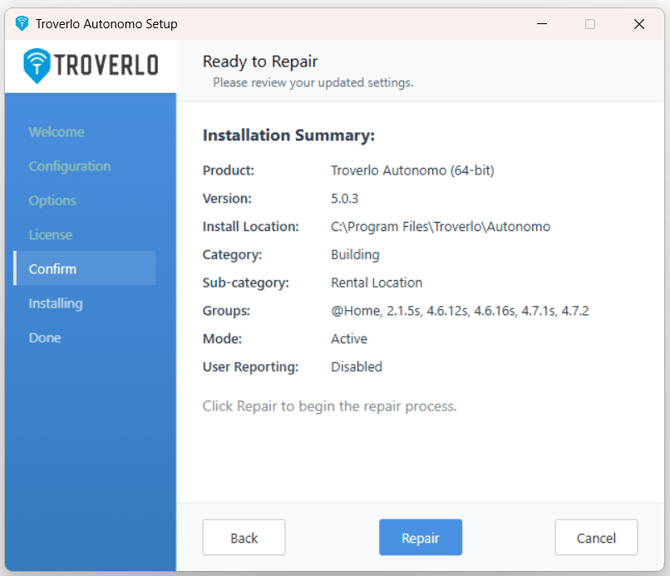
- Select "Repair"
- Select “Finish”
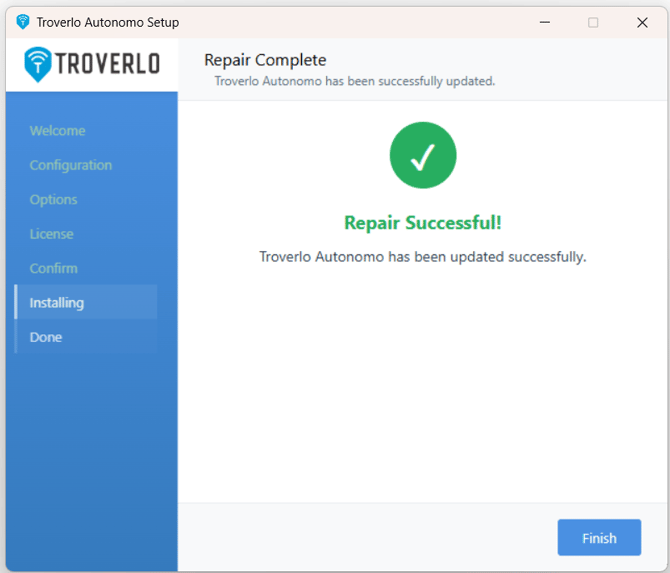
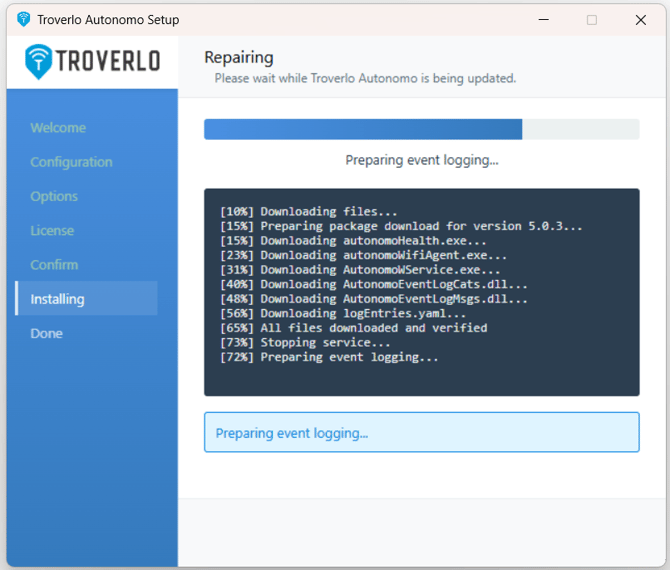
- Now, all the Autonomo files will be repaired.
- About 3 minutes after the installation is complete, you should be operationally ready.
Steps for Uninstalling Autonomo
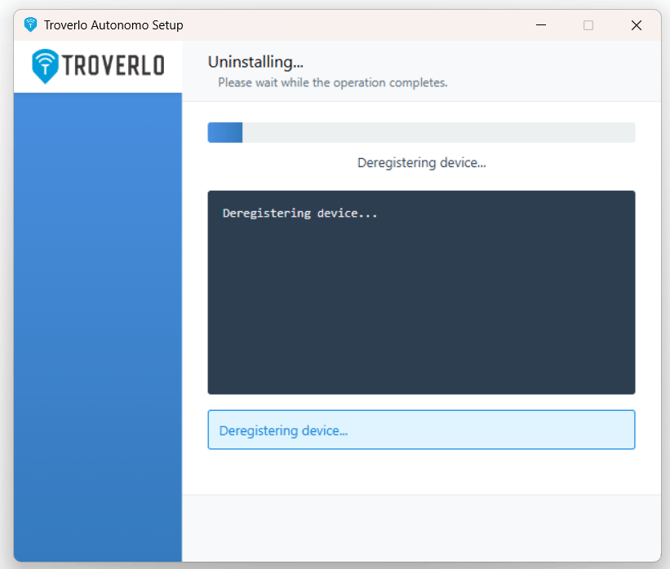
- To uninstall, the Asset must have internet connectivity and the User must have valid credentials to the Troverlo platform.
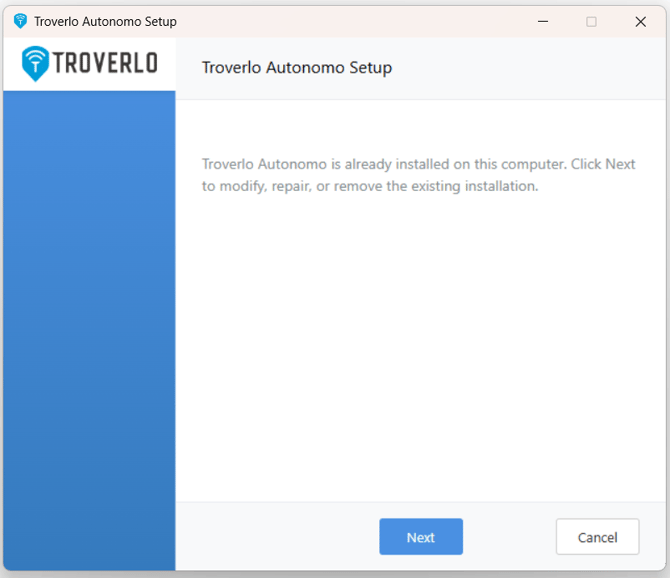
- Launch AutonomoSetup.exe
- Select "Next"
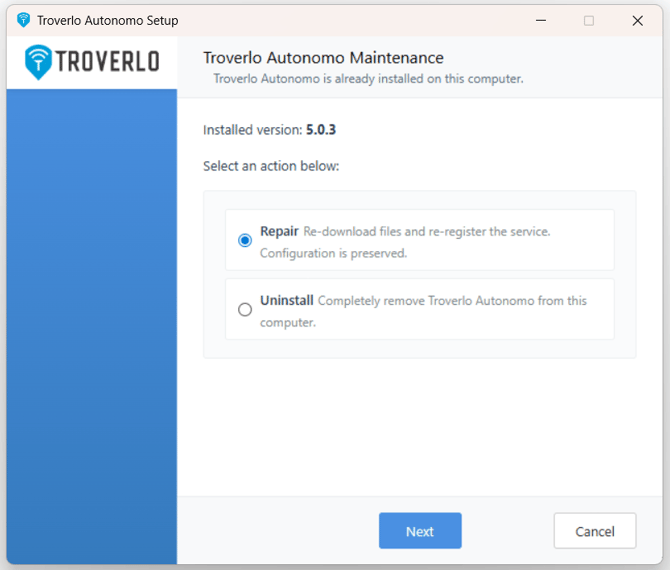
- Select "Uninstall" and then "Next"
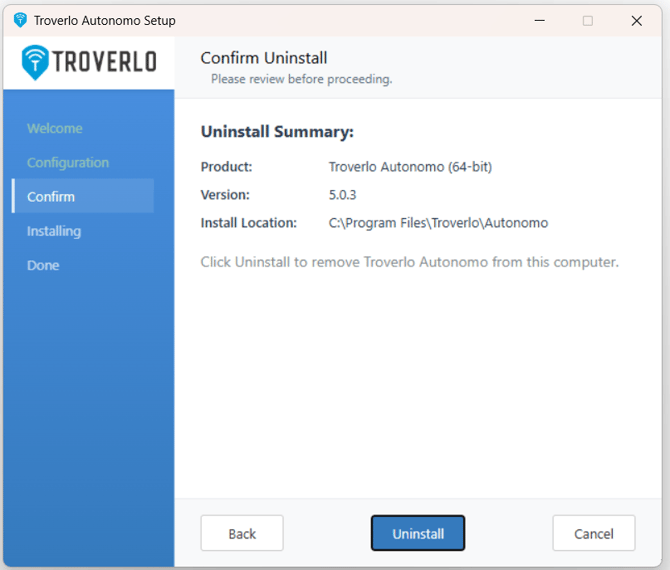
- Select "Uninstall"
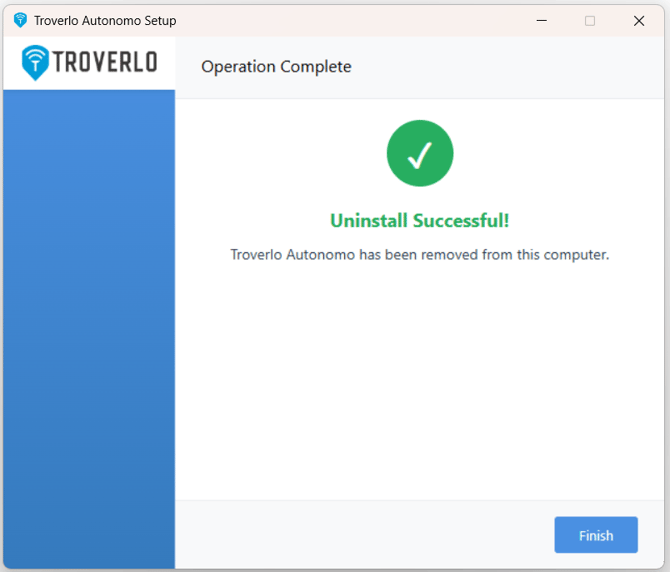
- Select "Finished"